
Homeio 1.9: apps on your own domain, and what a CasaOS migration broke
1.9 started as four issues filed by someone moving a CasaOS server to Homeio. Fixing them on real hardware turned up worse faults nearby, including a restore that could wipe the database. 1.9.3 then closed a registration hole on script installs, and 1.9.5 adds usage stats that anyone can see. This post covers what is new, what was fixed, and how to reach the server from outside with Tailscale or Cloudflare Tunnel.
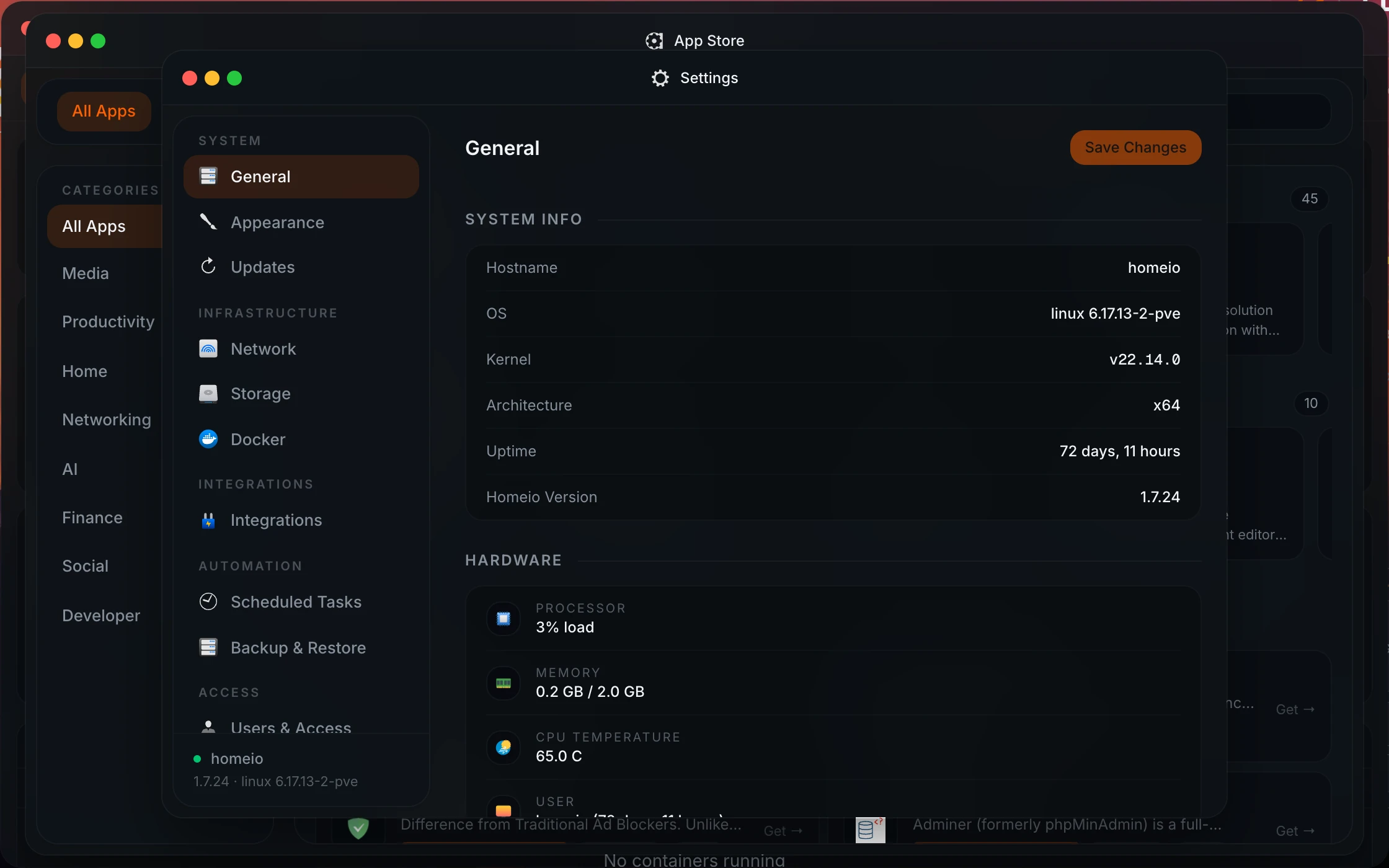
- Current release
- v1.9.5
- Released
- 2026-09-26
- Headline feature
- Cloudflare Tunnel
What 1.9.5 adds.
A small release on top of 1.9.3: nothing changes in how you use Homeio. If you update from 1.9.2 or earlier, the registration fix below matters more.
Usage stats you can see
A minute after startup and then every 12 hours, the server sends four fields to homeio.app: a random ID, the Homeio version, the CPU architecture and the OS. The IP address is not stored. The totals are public at homeio.app/stats, so you can see exactly what is counted. Turn it off in Settings → Advanced → Usage Stats, or with HOMEIO_TELEMETRY=false.
A private way to report a security problem
SECURITY.md sets out what counts as a vulnerability for a single-owner home server and what does not, and reports go through GitHub's private vulnerability form instead of a public issue. The targets are an answer within 7 days and a fix within 90. Only the latest release gets security fixes.
On 1.9.2 or older with install.sh? Update first.
install.sh wrote AUTH_ALLOW_REGISTRATION=true and never turned it off, so the register endpoint stayed open after the first account. The page redirected away, which hid it; the API did not. Homeio has no roles, so a second account gets everything yours has: terminal, files, Docker, disks, factory reset. Docker installs were never affected.
1.9.3 removes the variable. The database decides now: one account, then registration closes. If your server was published, check Settings → Users & Access for accounts you did not create.
curl -fsSL https://raw.githubusercontent.com/doctor-io/homeio/main/scripts/update.sh | sudo bashWhat 1.9 adds.
Most of these came straight from issues #31 to #35. The rest came from running the fixes on a real server before shipping them.
Publish an app through Cloudflare Tunnel
Settings → Integrations now runs cloudflared for you and, per app, creates the CNAME and the tunnel ingress rule through the Cloudflare API. The catch-all rule stays last, so publishing a second app never shadows the first.
Containers Homeio did not deploy
Anything started by CasaOS, Portainer or a bare docker run now appears on the desktop in a muted state, with live stats. They are read-only for now: Homeio shows them, it does not adopt them.
An app's link can be set by hand
Homeio guesses an app's address from its published port. When the real address is a tunnel hostname, a reverse proxy or a non-standard port, you can now override it per app.
Custom apps can be removed
Apps you added from a pasted compose file or a docker run command could be installed but never deleted from the store. They can now.
A Docker quickstart that starts
docker compose up -d used to crash-loop on the placeholder session secret. The entrypoint now generates one and keeps it in the stacks volume, and the image ships the docker CLI and compose plugin it needs.
Readable container logs
ANSI colour codes are stripped before a line is parsed. Coloured output no longer prints as [36m noise, and a WARN line is no longer mislabelled as a red error.
Nobody reported these. Driving the real thing found them.
The first one is why this release exists. If you restored a backup on 1.7 or earlier and it looked wrong, this is the likely reason.
Restoring a backup could erase the install
The reset dropped the public schema but not the drizzle schema holding the migration journal, so the dump failed 25 lines in, after the wipe had committed. Reset and reload are now one transaction, the archive is checked for a database dump before anything is deleted, and stored backups are excluded from the wipe.
A restore left the server half-empty
App store sources you had added were not in the archive, and every container was gone after the reboot because docker compose down removes them. Both are fixed: sources are archived, and stacks are recreated before the restart.
App store sources disappeared
Concurrent writes to the source registry overwrote each other, so adding one source could drop another. Writes are serialised, and a corrupt registry now reports an error instead of quietly falling back to the default catalog.
A tunnel returned 502
Routing the tunnel to localhost fails as soon as a tunnel has more than one connector. The origin is now the server's LAN address, overridable with HOMEIO_TUNNEL_ORIGIN_HOST.
A cache in front locked everyone out
Responses carried no Cache-Control, so a CDN could keep the 307 → /register an empty install returns. After that, every visitor landed on registration. Dynamic responses now send private, no-store.
uninstall.sh took a live server off the air
It re-enabled nginx's default vhost even on a run that removed nothing, and that vhost answers every request by IP. It now restores the default vhost only when that run actually removed Homeio's.
Tailscale or Cloudflare Tunnel? Usually both.
Both avoid opening a port on your router. They differ in who can get in and who sees the traffic, which decides what each one should carry.
| Tailscale | Cloudflare Tunnel | |
|---|---|---|
| Who can reach it | Only devices signed in to your tailnet. | Anyone with the hostname, unless you add Cloudflare Access. |
| What you need | A Tailscale account and /dev/net/tun on the host. | A domain on Cloudflare and an API token. |
| Ports opened on your router | None. | None. cloudflared dials out. |
| Who terminates TLS | Nobody in the middle. WireGuard end to end. | Cloudflare, which can read the traffic. |
| Best for | The Homeio dashboard itself, SSH, admin tools. | An app you share: Jellyfin for family, a public status page. |
Publish one app on your own domain.
Homeio creates the DNS record and the ingress rule for you. Before 1.9 you edited the tunnel's public hostnames by hand in the Cloudflare dashboard, once per app.
- 01
Create a tunnel in Cloudflare
In the Zero Trust dashboard, create a Cloudflare Tunnel and copy the install command it shows you. You do not need to run it anywhere.
- 02
Paste it into Homeio
Settings → Integrations → Cloudflare Tunnel. Paste the whole cloudflared service install eyJ… command; Homeio takes the token out of it, validates it, and starts cloudflared as a container named homeio-cloudflared.
- 03
Add the domain and an API token
Enter the domain the tunnel serves and an API token scoped to Zone:DNS:Edit and Account:Tunnel:Edit. Once saved, the token field is masked and locked.
- 04
Publish an app
Pick an installed app and confirm the subdomain Homeio suggests from its name. Homeio writes the ingress rule and the CNAME, and the app is live at https://subdomain.your-domain.
Reach the dashboard from your own devices.
Unchanged since 1.6, apart from the status fix. This is the route to use for Homeio itself.
- 01
Create an auth key
In the Tailscale admin console, generate an auth key for your tailnet.
- 02
Paste it into Homeio
Settings → Integrations → Tailscale. Homeio stores the key encrypted and hands it to tailscale up through a mode-0600 file, so it never appears in the process list.
- 03
Install and activate
If Tailscale is missing, Homeio runs the official installer, enables tailscaled and brings the node up. On a Proxmox LXC without /dev/net/tun it says so instead of failing silently.
- 04
Use the tailnet address
Open Homeio from any device in the tailnet by its Tailscale IP or MagicDNS name. Since 1.9.1 a connected node shows its status instead of an empty form.
Coming from 1.6? You also get these.
1.7 shipped without a blog post. These are the parts you will notice.
Two-factor login
TOTP from any authenticator app, with single-use backup codes, under Settings → Users & Access. Failed codes are rate-limited.
arm64 image
The Docker image is built for linux/amd64 and linux/arm64, with a capped Node heap and a 1 GB container limit so a Pi does not swap itself to death.
Authenticated event streams
Every server-sent event route now requires a session, and a test fails if a new API route ships without that check.
A store that does not pin the CPU
The catalog was re-scanned, one stat per app, on every request and on every search keystroke. The cache is now checked first. On low-power boxes the difference is obvious.
Before you open anything to the internet.
- If you installed with install.sh and your server is reachable from the internet, update, then check Settings → Users & Access for accounts you did not create.
- Keep the Homeio dashboard on Tailscale or your LAN. It has a terminal, Docker and disk tools behind it, so treat its login like SSH.
- If you publish Homeio itself through the tunnel, put a Cloudflare Access policy in front and turn on two-factor login.
- Scope the Cloudflare API token to the one zone the tunnel uses. Homeio needs DNS and Tunnel edit rights, nothing else.
Questions about 1.9.
What is the latest Homeio version?
Homeio 1.9.5, released 2026-09-26. It adds anonymous usage stats and a security policy on top of 1.9.3, which closed the registration hole on script installs. There was no public 1.9.4. GitHub releases is authoritative if this page and it ever disagree.
How do I update to 1.9.5?
Script installs: run update.sh (the command is on this page). Docker installs: docker compose pull && docker compose up -d. The update adds the usage stats setting to the database; nothing is deleted, and existing accounts keep working.
What does Homeio send about my server?
Since 1.9.5, four fields twice a day: a random ID created on your server, the Homeio version, the CPU architecture and the OS. No IP address, username, file path or app name is stored, and the totals are public at homeio.app/stats. Settings → Advanced → Usage Stats turns it off, and HOMEIO_TELEMETRY=false keeps it off.
Was my Docker install affected by the registration issue?
No. Docker installs never set the variable, which evaluated to false, so registration closed after the first account as intended. Only install.sh wrote it as true.
Should I use Tailscale or Cloudflare Tunnel?
Both, for different things. Tailscale for the dashboard and anything administrative, because only your own devices can reach it. Cloudflare Tunnel for an app other people need to open in a browser without installing a VPN client.
Does Homeio manage containers it did not deploy?
It lists them, with state and live stats, so you can see everything on the machine. It does not start, stop or edit them yet. Keep managing those the way you did before, or reinstall them from the store.
Can I publish an app on a domain that is not on Cloudflare?
Not through this integration. Homeio creates the DNS record through the Cloudflare API, so the zone has to live there. For another DNS host, use the app link override and your own reverse proxy.