
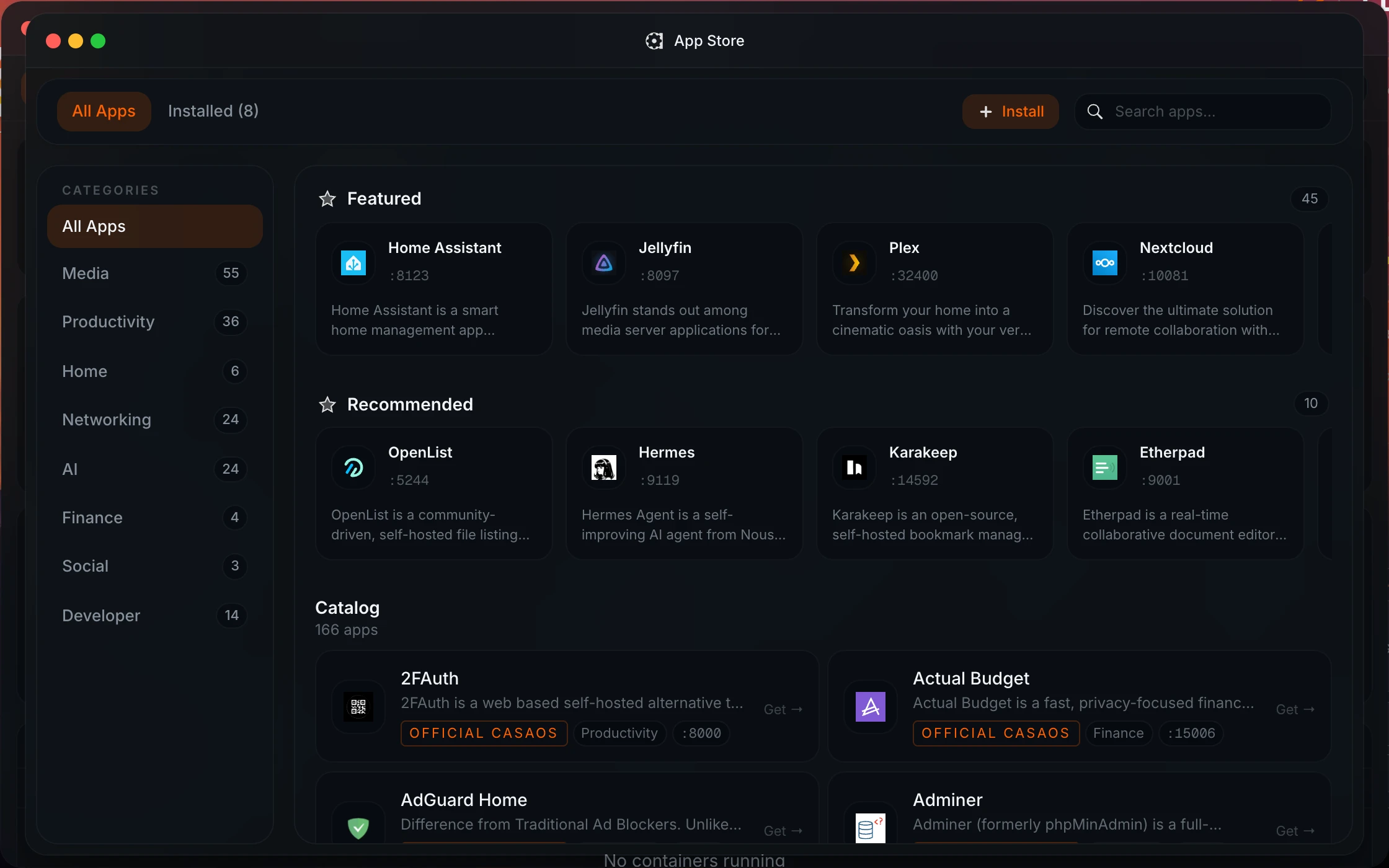
What a Docker app store actually does
A self-hosted app store is a catalogue of Docker Compose templates with a button in front of them. Each entry says which image to run, which ports and folders it needs, and which settings you should fill in. When you click install, the store writes a Compose file, pulls the images and starts the containers, the same as running docker compose up -d yourself.
That is worth knowing for two reasons. First, the app you get is an ordinary container, not something special to the store. Second, the quality of a store is mostly about what happens around that one command: where your data ends up, how updates work, whether you can read and change what it installed, and what you do when the app you want is not listed.
The app stores home servers use
Most home server platforms ship their own store, and most stores only work on their own platform:
| Store | Used by | Catalogue | Apps it does not list |
|---|---|---|---|
| CasaOS App Store | CasaOS, Homeio | About 180 apps, plus community stores in the same format | Import a Compose file or docker run command |
| Umbrel App Store | umbrelOS only | Over 300 apps, plus community stores | Community stores in Umbrel's format |
| Community Applications | Unraid only | A large set of community-maintained templates | Add a container by hand in the Docker tab |
| TrueNAS Apps | TrueNAS only | Official and community apps | Paste your own Compose YAML |
| Runtipi App Store | Runtipi | A few hundred apps, plus stores from Git repositories | Your own app definitions |
| Portainer templates | Portainer | A short template list you can replace with your own | Stacks from Compose files |
If you are still choosing a platform, the store is one factor among several. Our home server OS comparison covers the rest, and CasaOS vs Umbrel compares the two most popular stores directly.
What to look for in an app store
- You can read what it installs. The Compose file should be visible and editable, before and after install. If it is not, you cannot fix a wrong port or add a volume.
- Data lands in a folder you know. App data in one predictable place is what makes backups and moving to new hardware possible.
- Updates are visible and deliberate. You want to see that an update exists and choose when to apply it, especially for apps holding databases.
- Uninstall asks about data. Removing an app and deleting its data should be two separate decisions.
- You are not limited to the catalogue. Every store is missing something. Pasting a Compose file should be a first-class way to add an app.
- The apps outlive the store. If you stop using the dashboard, the apps should keep running as plain Docker Compose stacks.
How Homeio's app store works
Homeio, the project behind this site, uses the official CasaOS App Store as its default catalogue, so the apps self-hosters know best, such as Jellyfin, Immich, Nextcloud, Pi-hole and Home Assistant, are there from the first run. You can add more stores from Store Sources: paste the HTTPS address of a ZIP archive of any CasaOS-style store, and its apps appear next to the official ones. Each source can be refreshed or turned off on its own.
Installing opens a configurator with three views of the same app. The form view lists the image, ports, volumes, environment variables, devices, capabilities, network and restart policy. The Compose view shows the file itself in an editor. The Docker Run view shows the equivalent command. Change what you need in whichever view you prefer, then install.
Progress streams while the images download and the containers start, and a notification tells you when the app is ready. App data goes under /DATA/AppData/<app>, the same layout CasaOS uses, so an app reinstalled from the store finds the data a previous copy left behind.
The app store is one window of Homeio's desktop. The same interface has a file manager, disk tools, scheduled tasks and backups, which is what the rest of this site covers. The live demo opens straight onto it.
After the install: updates, logs, uninstall
- Updates. When the catalogue moves an app to a newer version tag than the one you run, the app shows an update. Applying it pulls the new images and recreates the containers, with progress on screen.
- Redeploy. Pulls the images again and recreates the containers with the current Compose file. This is how an app that tracks a moving tag such as
latestpicks up a new image, and how changes you made to its settings take effect. - Logs. Each app's logs stream live, with standard output and errors marked apart, so you can watch a slow first start instead of guessing.
- Settings. Open an installed app's configuration later to change a port, add a volume or edit its Compose file.
- Uninstall. Removes the containers, and asks separately whether to delete the app's data.
To keep images current without clicking, a scheduled task can pull every stack's images on a cron schedule. That only downloads them; apps move to the new image when you update or redeploy them, so nothing restarts behind your back. For the command-line side of the same work, see our guide to managing Docker containers.
Adding an app that is not in the store
Choose Install Custom App and paste either a Docker Compose file or a docker run command; Homeio converts the command to Compose. Most projects publish one or the other in their README. For example, Uptime Kuma, a status page and uptime monitor:
services:
  uptime-kuma:
    image: louislam/uptime-kuma:1
    restart: unless-stopped
    ports:
      - "3001:3001"
    volumes:
      - /DATA/AppData/uptime-kuma:/app/data
Point volumes at a folder under /DATA/AppData so the app's data sits with everything else and ends up in your backups. Custom apps get the same logs, settings, redeploy and uninstall as store apps.
Two habits save trouble later. Pin a version tag rather than latest for anything holding a database, and check that the host port is free before you install. If you are new to Compose, our Docker home server guide explains ports, volumes and networks from the start.
Good first apps to install
- Jellyfin for your films and shows on every TV and phone.
- Immich for automatic photo backup from your phone.
- Pi-hole or AdGuard Home for network-wide ad blocking.
- Vaultwarden as a lightweight Bitwarden server for passwords.
- Home Assistant to control smart home devices locally.
Install two or three, live with them for a week, then add more. Our list of the best self-hosted apps covers each category in more depth, and the beginner setup guide covers the server underneath.
When an app store is the wrong tool
One-click installs suit apps with a clear image, a few ports and a data folder, which is most of them. They fit less well for stacks that need careful host networking, apps that expect to manage other containers, or a setup you want to keep in Git and deploy the same way on several machines. For those, write the Compose file yourself and run it with docker compose. Homeio will still show the running containers on its desktop, and nothing it installs depends on it: every app is a Compose stack you can manage by hand at any time.