Homeio
Homeio
PortainerPortainervsHomeioHomeio

Alternative to Portainer

Portainer alternative built for one home server.

Portainer is excellent if you're managing Docker across multiple environments for a team. But on a personal home server with 3-5 containers, it's overwhelming — 12 sidebar items, multi-environment setup, and Business licensing for basic features. Homeio is built for exactly the use case Portainer over-engineers: one person, one machine, Jellyfin + Immich + Pi-hole.

  • A dashboard designed for personal servers — not a multi-environment container administration console.
  • 158+ pre-configured Docker Compose apps: install Jellyfin, Immich, Pi-hole, Nextcloud in one click without writing YAML.
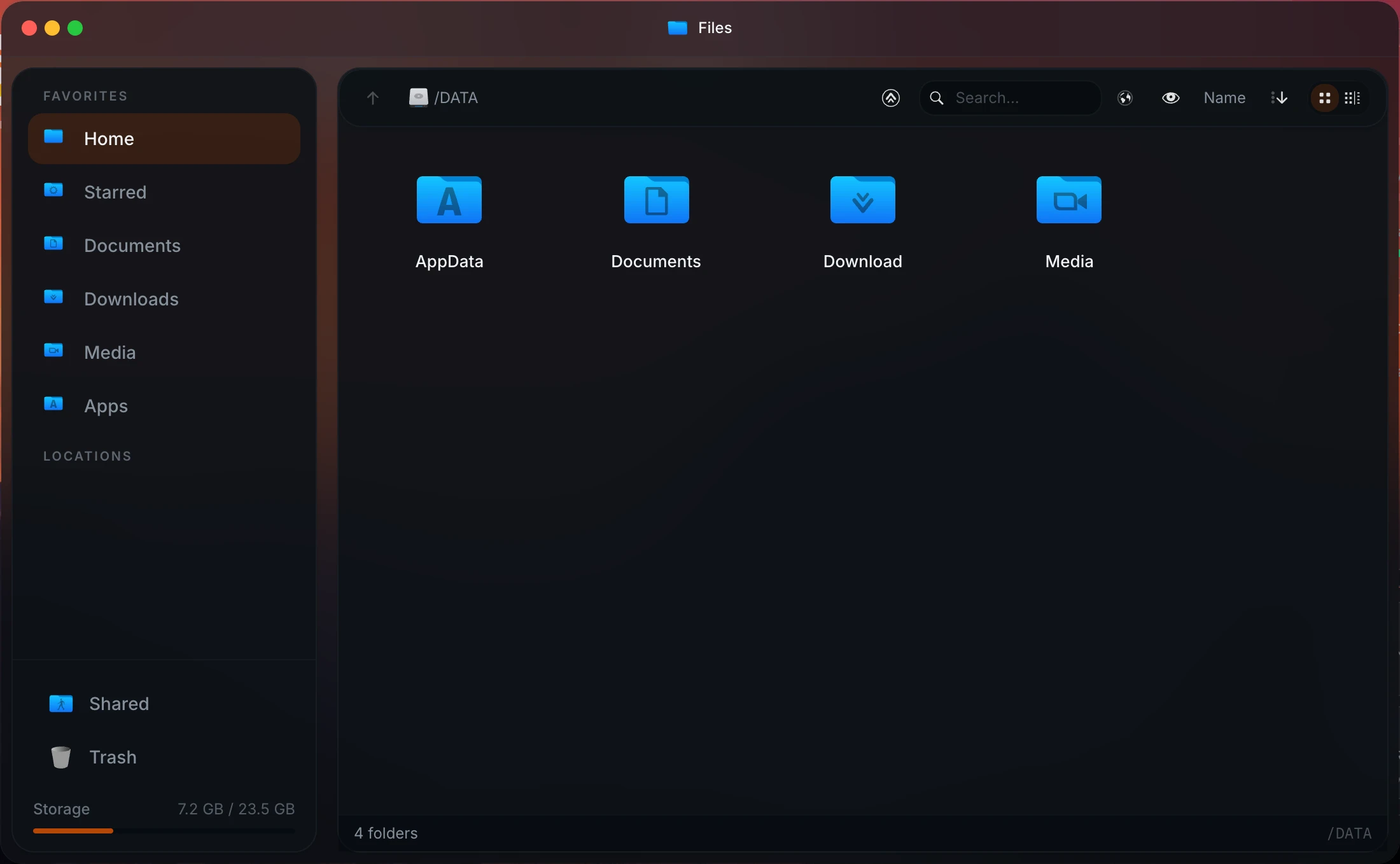
  • Integrated file manager with Samba/SMB sharing, Google Drive, and USB drive support alongside your app workflows.
  • Built-in cron scheduler for image pulls, container restarts, and backups — a Portainer Business feature, free in Homeio.
  • Real-time container log viewer with level badges and keyword filter — debug a crashing service without SSH.
  • Fully free and open source — no Business edition, no per-node pricing, no agent licenses.
  • Live system metrics: CPU, memory, disk, and network for the host and per-container Docker stats, visible at a glance.
homeio.app
Homeio home server dashboard as an alternative to Portainer

Why Homeio works

Choose Homeio if you want a stronger daily operating surface.

NeedWhy Homeio fits
A dashboard built for home use

Portainer's interface is designed for teams managing environments. Homeio's is designed for one person who wants Jellyfin, Immich, and Pi-hole running reliably.

An app catalog

Browse and launch 158+ pre-configured services without copy-pasting YAML from GitHub READMEs. Portainer has no built-in app store.

Faster from idea to running

Find an app in the catalog, click install, it's running. No compose file to write, no environment variables to figure out from scratch.

Scheduled tasks at no extra cost

Homeio's cron runner schedules image pulls, restarts, and shell scripts with pass/fail notifications. In Portainer, scheduled tasks require the Business license.

Live logs without SSH

Container log streaming with keyword filter lets you see exactly why a service crashed — without opening an SSH client or running docker logs manually.

Files and storage alongside containers

The integrated file manager, Samba sharing, and USB support mean you don't need to leave the dashboard to manage the files your apps depend on.

No Business license for basic features

Homeio is free for everything — scheduled tasks, Git-based deploys, log streaming. No tier to upgrade, no per-node cost.

A calmer interface

Homeio has one sidebar, not twelve. It covers what a home server actually needs without the overhead of Swarm, Kubernetes, and multi-environment management.

FAQ

Questions people ask before switching.

Is Homeio an alternative to Portainer?

Yes — specifically for personal home servers. Portainer is a serious tool built for teams managing Docker across multiple environments. If you're running Jellyfin, Immich, and Pi-hole on a single box at home, Portainer's 12-item sidebar and multi-environment model is more than you need. Homeio wraps the same Docker Compose management in a dashboard designed for exactly that use case.

What makes Homeio different from Portainer?

Portainer is primarily a container administration console — excellent at what it does, but that's its whole surface area. Homeio adds a 158+ app store, an integrated file manager with USB and Samba support, a cron task scheduler, live container logs, a disk partition manager, and real-time system metrics. It's designed around the rhythm of a home server, not a DevOps fleet.

Who should choose Homeio over Portainer?

If you're a team managing Docker Swarm across staging and production environments, use Portainer — it's excellent for that. If you're one person running a few self-hosted apps at home and want a dashboard that covers apps, files, logs, and monitoring without a steep learning curve, Homeio is the better fit.

Can I still manage Docker Compose stacks with Homeio?

Yes. Homeio manages Docker Compose stacks natively: install, update, restart, remove, and view logs. Apps from the built-in store are also Docker Compose stacks, so the management model is consistent whether you installed an app from the catalog or brought your own compose file.

Does Homeio show live container stats?

Yes. Real-time CPU, memory, disk, and network metrics for the host machine, plus per-container Docker stats. It all updates live. This is more than enough visibility for a home server — you don't need Portainer's environment-level dashboards for a single machine.

Does Homeio have a built-in terminal?

Yes. The web terminal runs with a configurable command allowlist — docker, ls, cat, df, ping, and more. It's not a full root shell, which is intentional: it gives you the most common maintenance operations without exposing everything through a browser tab.

Does Homeio support task scheduling?

Yes. The cron runner schedules shell commands, docker compose pull, container restarts, and backups. Each task sends a real-time pass/fail notification. Portainer CE doesn't have scheduled tasks at all — that's a Business feature.

Is Homeio free?

Yes, fully. Portainer CE is free for up to 5 nodes, but features like scheduled tasks, RBAC, and Git deployments require Portainer Business, which is licensed per node. Homeio is free for everything, with no paid tier.

Can I manage files and storage with Homeio?

Yes. The integrated file manager handles upload, download, unzip, multi-select, code editing (Monaco editor), media preview, and USB drive browsing. You can share folders over Samba/SMB and connect Google Drive — all from the same interface as your Docker stacks.

How does Homeio handle disk management?

There's a disk and partition manager for listing block devices, formatting drives, creating and deleting partitions, and mounting or unmounting volumes. Each destructive operation has an explicit confirmation step — useful when you have multiple drives and want to be sure you're touching the right one.

Next step

Install Homeio and run your own home cloud with more control.

Keep your apps, files, terminal, and system health in one interface, then follow the comparison pages deeper if you still need to evaluate the options.